
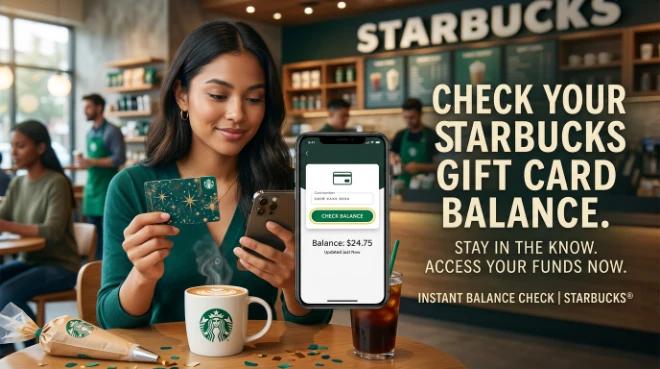
Starbucks Gift Card Balance: 4 Fast Ways to Check in 2026
Wondering how much credit remains on your plastic card or digital voucher? Checking your Starbucks gift card balance takes less than a minute. Knowing your available funds ensures your payment processes smoothly before you step up to the counter or submit an order for your morning coffee.
Whether you received a card as a holiday present or keep a reloaded card in your wallet, you can view your real-time balance online, through your smartphone, or directly at the register.
Quick Comparison: Balance Check Methods
| Method | Speed | Sign-in Required? | Best Used For |
| Mobile Application | Instant | Yes | Frequent visitors & Rewards members |
| Official Online Portal | Under 30 seconds | No | Quick checks without an account |
| In-Store Barista | 1–2 minutes | No | In-person verification before ordering |
| Printed Register Receipt | Instant | No | Tracking leftover funds right after a purchase |
1. Check Starbucks Gift Card Balance Online (No Sign-in Required)
The official web portal lets you verify available credit on your desktop or mobile browser without signing in or linking the card to a permanent account:
- Open your browser and go to the official Starbucks Card page.
- Scroll to the card balance section.
- Locate the 16-digit card number printed on the back of your physical card (or in your digital gift email).
- Gently scratch off the protective coating to reveal the 8-digit security code (PIN).
- Enter both numbers into the form fields and click Check Balance.
Your real-time available funds will display on the screen right away.
2. Check Balance in the Mobile App
Using your smartphone offers the fastest experience if you visit frequently. Linking your card allows you to review your total funds, trigger automatic reloads, and collect rewards.
- Launch your mobile application. If you have not set it up yet, review our guide to setting up the Starbucks app.
- Tap the Scan / Cards icon in the bottom menu bar.
- Your linked payment cards will display with their exact live balances.
- Tap any individual card to manage auto-reloads or transfer remaining balances onto a single primary card.
Connecting your card to the app also lets you track star milestones and redeem annual perks like the Starbucks birthday reward on your special day.
3. Check in Store at the Register
If you are already grabbing a beverage, a barista can scan your card to check the remaining balance on their terminal:
- Hand your physical card or present your digital barcode at the register or drive-thru window.
- Ask the barista for a balance inquiry before placing your order.
- The barista will scan the barcode and display or confirm your remaining total.
Before heading to your local cafe, verify the updated drive-thru and lobby schedules via our Starbucks hours directory to ensure your location is open.
4. Check Your Printed Receipt
Every time you pay with a gift card at a participating corporate store, the register terminal prints your remaining account balance at the bottom of your sales receipt. If you saved your slip from your last visit, look below the tax line for the label Card Balance to see your available funds without looking online.
Popular Items to Buy With Your Gift Card Balance
Once you confirm your remaining funds, browse current pricing across our complete Starbucks menu with prices to budget your order. Your balance works across all standard and seasonal offerings:
- Autumn Favorites: Grab a hot or iced Pumpkin Spice Latte from the Starbucks fall menu.
- Chilled Refreshers: Pick up cold craft brews and fruit refreshers featured on the Starbucks summer menu.
- Seasonal Specialties: Use holiday credits toward Peppermint Mochas from the Starbucks holiday menu, or try lavender beverages introduced on the Starbucks spring menu.
- All-Day Breakfast: Pair your drink with warm bacon gouda sandwiches, egg white wraps, or sous-vide egg bites.
How to Reload Your Starbucks Card
If your balance is running low, you can reload funds instantly through three convenient channels:
- In the App: Tap your card, select Add Money, pick a dollar increment ($10, $25, $50), and pay via debit card, credit card, or PayPal.
- Online: Visit the Starbucks website, input your card number and PIN, and make a one-time top-up payment.
- At the Store Counter: Hand your card to the barista and request an in-person cash, debit, or credit reload.
Troubleshooting Common Gift Card Problems
- Missing or Scratched PIN: If you scratch too hard and erase the 8-digit security code, take the card to a corporate location with your original store purchase receipt, or contact support at
1-800-STARBUC. - Card Shows Zero Balance Unexpectedly: Ensure you typed the 16-digit card number correctly without spaces. If the card was loaded recently at a third-party supermarket, wait up to 30 minutes for the activation to clear point-of-sale servers.
- Stolen or Lost Cards: If your lost card was registered to your app, sign into your account immediately and transfer the balance to another registered digital card to secure your money.
Frequently Asked Questions
Can I check my Starbucks gift card balance without a security PIN?
No. Checking your card balance online requires both the 16-digit card number and the 8-digit security code. If your PIN is unreadable, a barista must scan the physical barcode directly at an in-store terminal.
Does a Starbucks gift card balance ever expire?
No. Starbucks gift cards, e-gifts, and stored card balances do not expire, nor do they carry dormancy fees or service charges over time.
Can I combine balances from multiple Starbucks gift cards?
Yes. Open the app, navigate to Cards, choose your primary card, tap Manage, and select Transfer Balance to consolidate funds from smaller cards onto one main card.
Can I use my balance at airport and grocery store kiosks?
Most licensed locations (such as kiosks inside Target, Safeway, Barnes & Noble, and airports) accept standard cards for payment and can scan cards linked to the app.